
Inviting a collaborator
A firm rarely works alone. Invite your collaborators: they access the firm's clients and files, with the role you give them.
What it is for
The Team and roles tab shows the Invite a collaborator card, the number of users against the limit, and the list of members with their role. The owner and the administrator can change a member's role or remove the member — never the owner, never themselves.
Steps
- Open Firm settings, Team and roles tab.
- Click Invite a member.
- Enter the Full name, the Email and the Role: Collaborator (proposed by default), Read only or Admin.
- Click Send invitation.
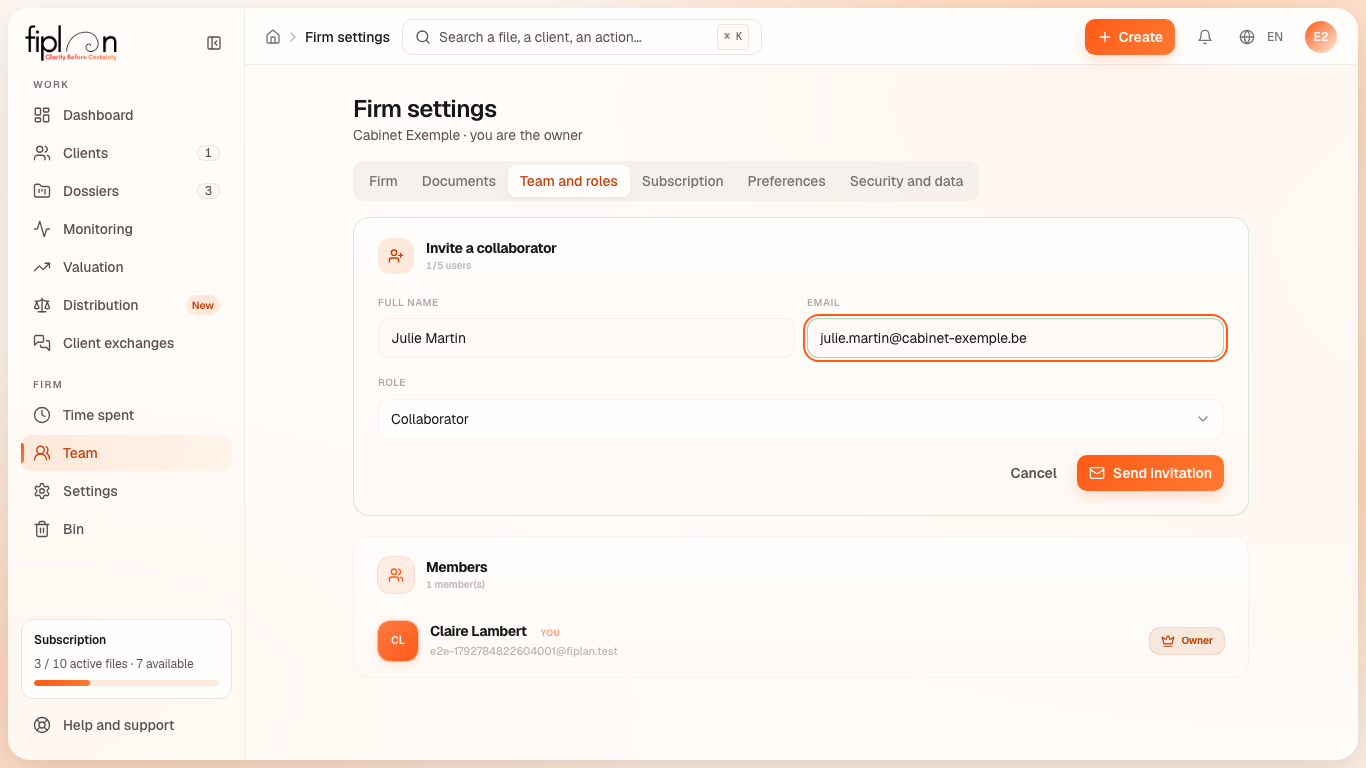
Worked example · Boulangerie Dupont SRL
The firm entrusts the data entry for the bakery's plan to a collaborator: it invites her with the Collaborator role. She will be able to enter data, comment and duplicate the file; she will not be able to delete it, nor invite other members. During the trial, the firm is entitled to only 1 user: the invitation requires a subscription plan.
Pitfalls
What it changes
Source
Fiplan convention (EquipeCabinet.tsx, the roles migration): the invitation, the roles offered, the user limit checked by the database.