
The logo, colour and theme of documents
A financial plan carries the brand of whoever prepares it. The firm sets its logo, colour and theme once; every report uses them.
What it is for
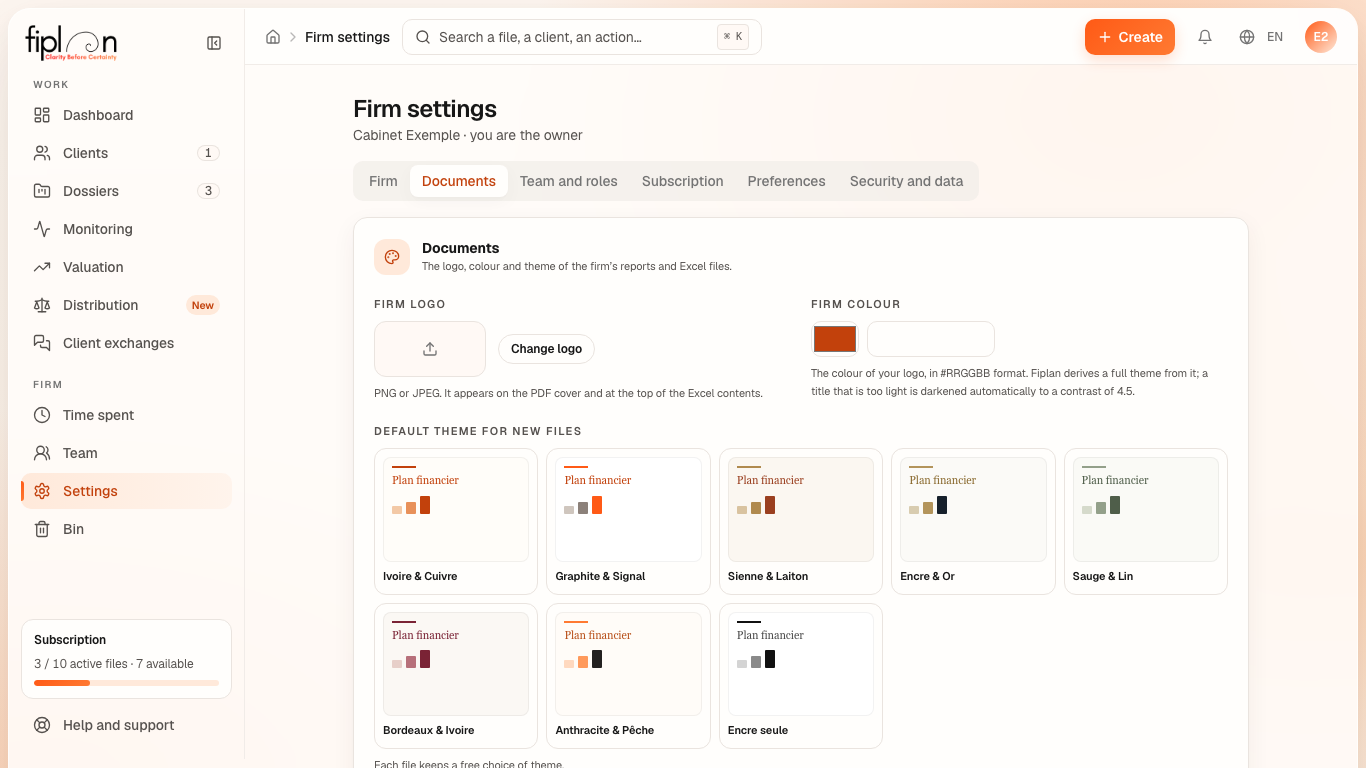
The Documents tab of the settings — reserved for the owner and the administrator — holds the Firm logo (PNG or JPEG), the Firm colour (with a reading of its contrast) and the Default theme for new files. Eight themes are offered, from “Ivoire & Cuivre” (Fiplan's standard theme) to “Encre seule”; if the firm has a colour, a “Firm theme” is derived from it and offered first.
White label — removing “Made with Fiplan” from the footer of the documents — depends on the subscription: the tab shows its status, without changing it.
Steps
- Open Firm settings, Documents tab.
- Click Change logo and choose your file.
- Enter the Firm colour in #RRGGBB format and read the contrast.
- Choose the Default theme for new files.
- In a file, change the Document theme in the Report module if needed.
Worked example · Boulangerie Dupont SRL
The bakery's plan takes the firm's default theme. The PDF Plan-financier_Boulangerie-Dupont-SRL_2026-10-02.pdf and the Excel file carry the firm's logo on their cover and their contents page; the figures, for their part, depend on no theme.
Pitfalls
What it changes
Source
Fiplan convention (themes-documents.ts, cabinet/documents.ts): the eight themes, the theme derived from the firm's colour, the white label linked to the subscription.