
Time spent
How long did this client's plan take? The file's timer measures it; the Time spent page adds it up for the firm.
What it is for
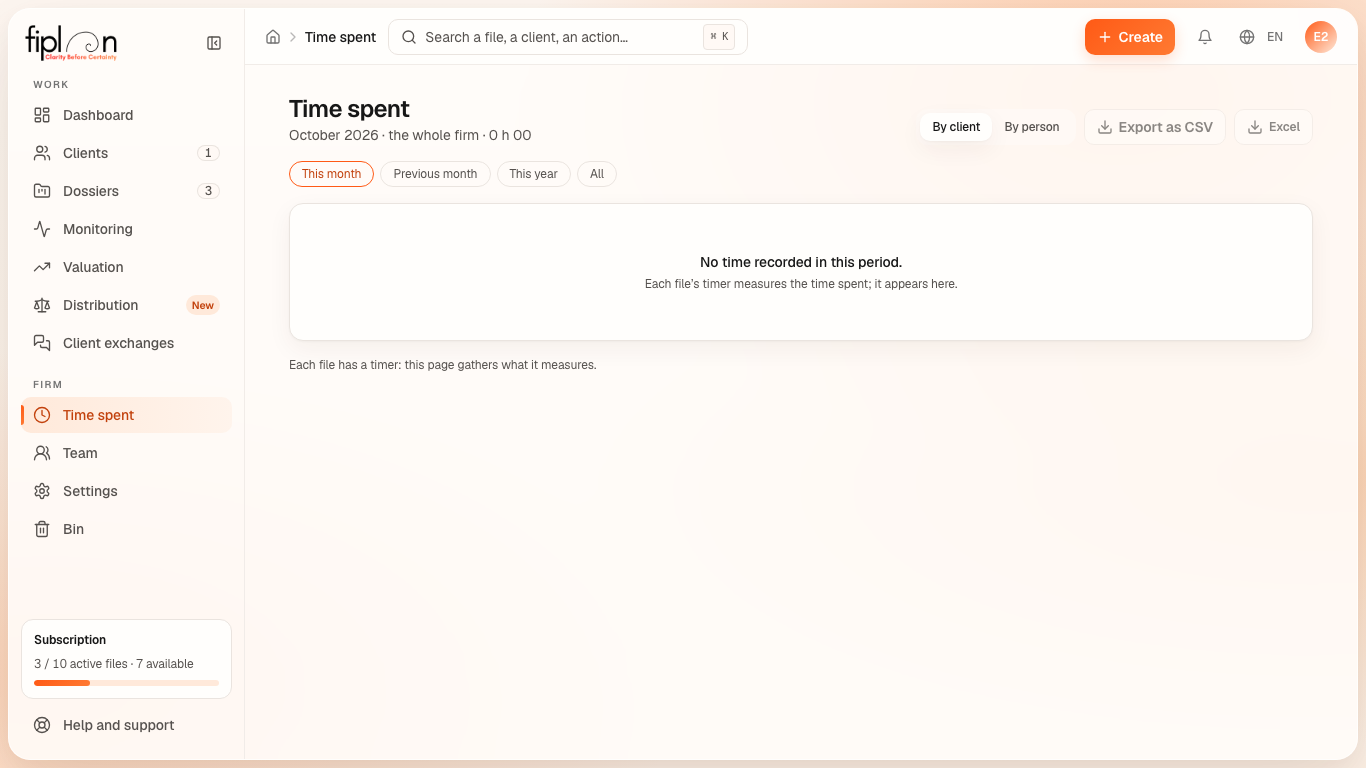
Each file has a timer. The Time spent page gathers its sessions: By client or By person, over This month, Previous month, This year or All, with the number of files, the number of sessions and the duration, and a total line. The owner and the administrator see the whole firm; the other members, their own time.
Steps
- In the file, start the timer when you begin working and stop it when you finish.
- Open the Time spent page from the menu.
- Choose the view and the period.
- Export with Export as CSV or Excel.
Worked example · Boulangerie Dupont SRL
The time for the bakery's plan adds up on the line of the client “Boulangerie Dupont SRL”: each session of its file's timer, in decimal hours in the CSV export (Date; Person; Client; File; Hours; Note).
Pitfalls
A session in progress does not count. Stop the timer so that the session enters the totals.
A deleted file keeps its time. It appears as “Deleted dossier: …”, or “Dossier in the bin”.
What it changes
① Income statementNo effect€0.00Time spent is not an expense of the plan.
② CashNo effect€0.00It measures the firm's work, not the company.
③ Balance sheetNo effect€0.00No figure of the plan changes.
Source
Fiplan convention (TempsPasse.tsx, temps-passe.ts): the views, the periods, the export format.