
Firm settings
The firm is the space that brings together your clients, your files and your team. Its settings are made once, and apply to every file.
What it is for
The Firm settings page has six tabs: Firm (the identity: name, company number (numéro d'entreprise / ondernemingsnummer), address, website, contact email), Documents (logo, colour, default theme), Team and roles, Subscription, Preferences (the language and the length proposed for a new file) and Security and data (the export).
The owner and the administrator change the settings; the other members view them: “You are viewing the firm's settings; only the owner and the administrator change them.” The Subscription tab appears only to the owner and the administrator, Security and data only to the owner.
The contact details of the Firm tab — company number, address, website, contact email — are printed on one line, in the footer of every PDF: the plan, the monitoring report, the valuation report and the distribution report.
Steps
- Open Firm settings from the menu.
- Firm tab: upload the logo and complete the Firm identity, then click Save.
- Preferences tab: choose the Language of new files and the Proposed length of a new plan.
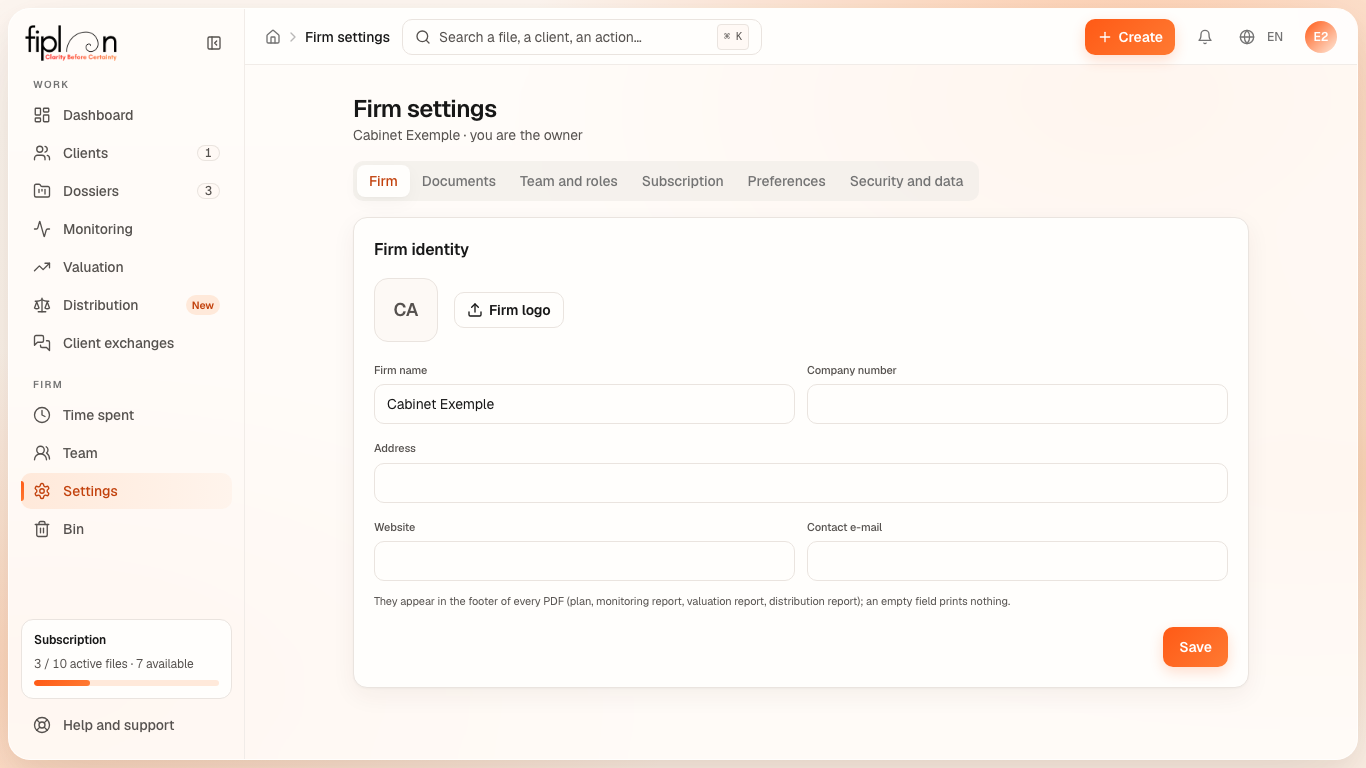
Worked example · Boulangerie Dupont SRL
The firm that prepares the Boulangerie Dupont plan — “Cabinet Exemple” in this guide — sets its proposed length to 3 years: each new file, like the bakery's, opens with 3 financial years. In the bakery's PDF, the second line of each page's footer starts with “Cabinet Exemple”, followed by the contact details the firm has filled in.
Pitfalls
What it changes
Source
Fiplan convention (Parametres.tsx, cabinet/coordonnees.ts, rapport/pied-de-page.ts): the tabs, the editing rights reserved for the owner and the administrator, the line of contact details in the footer of the PDFs.