
The Standard, Notary, Bank and Advisory templates
A notary, a banker and a client do not expect the same document. Fiplan composes the report for its recipient — the order of the legal items, the financing request, the recommendations — from the same figures.
What it is for
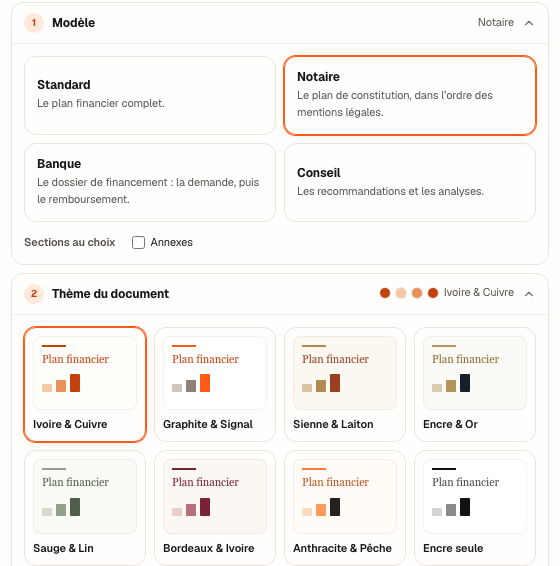
In the Report module, the first setting, ① Template, chooses the sections and their order. An “optional” section is switched off by default and is ticked in Optional sections, below the four templates; a section without data is left out, never filled with zeros.
| Template | Its sections, in order |
|---|---|
| Standard | Contents · Executive summary · The request (optional) · Description of the planned activity · Sources of financing and guarantees · Assumptions · Opening balance sheet · Balance sheet — Assets · Balance sheet — Liabilities · Appropriation of result · Income statement · Annual cash flow · Monthly cash flow · Debt service capacity · Taxation · Value added tax · Ratios · Pinned charts · Controls · External expert (optional) · Appendices |
| Notary | Concordance table · Description of the planned activity · Sources of financing and guarantees · Opening balance sheet · Balance sheet — Assets · Balance sheet — Liabilities · Income statement · Monthly cash flow · Assumptions · External expert · Appendices (optional) |
| Bank | The request · Contents · Executive summary · Description of the planned activity · Sources of financing and guarantees · Debt service capacity · Annual cash flow · Monthly cash flow · Opening balance sheet (optional) · Balance sheet — Assets · Balance sheet — Liabilities · Appropriation of result · Income statement · Ratios · Assumptions · Taxation (optional) · Value added tax (optional) · Pinned charts (optional) · Appendices |
| Advisory | Contents · Executive summary · Recommendations and action plan · Ratios · Debt service capacity · Income statement · Annual cash flow · Pinned charts · Description of the planned activity · Assumptions · Taxation · Value added tax · Sources of financing and guarantees (optional) · Balance sheet — Assets (optional) · Balance sheet — Liabilities (optional) · Appropriation of result (optional) · Monthly cash flow (optional) · Appendices (optional) |
Each template also reads its own Plan information (setting ③): 2 fields for the Standard template, 5 for the Notary, 6 for the Bank, 2 for the Advisory template.
Steps
- Open the Report module; in ① Template, choose one of the four cards.
- Below the cards, tick the Optional sections to include: the choice is kept for each template.
- Open ② Document theme: each theme shows its colours and its name; it applies to the PDF and the Excel file, the figures do not change. When closed, the setting shows the dots of the chosen theme.
- Open ③ Plan information and fill in what the template asks for: the planned activity for all of them; the guarantees and the assumptions for the Notary template; the external expert for the Notary template; the financing request (amount, purpose, term) and the guarantees offered for the Bank template; the recommendations, one per line, for the Advisory template. When closed, the setting says how many fields are filled in.
- Download the PDF or the Excel file.
Worked example · Boulangerie Dupont SRL
For its incorporation, the bakery hands the notary the Notary template: 11 sections, from the concordance table to the appendices. For its bank, the same plan in the Bank template opens with the request — the loan of €40,000.00 over 5 years for the van — then the debt service capacity.
The downloaded file is named Plan-financier_Boulangerie-Dupont-SRL_2026-10-02.pdf.
Pitfalls
What it changes
Source
Companies and Associations Code (CSA / WVV), Article 5:4, § 2 (private limited company, SRL / BV), 6:5, § 2 (cooperative company, SC / CV), 7:3, § 2 (public limited company, SA / NV): the content of the financial plan at incorporation.
Fiplan convention (modeles-rapport.ts, informations-plan.ts, RapportStandard.tsx): the sections of each template, their order, the optional sections, the information each template reads.