
Pinned charts
A well-chosen chart says at a glance what a table says in twenty lines. Pin the ones that matter: the report includes them, in your order.
What it is for
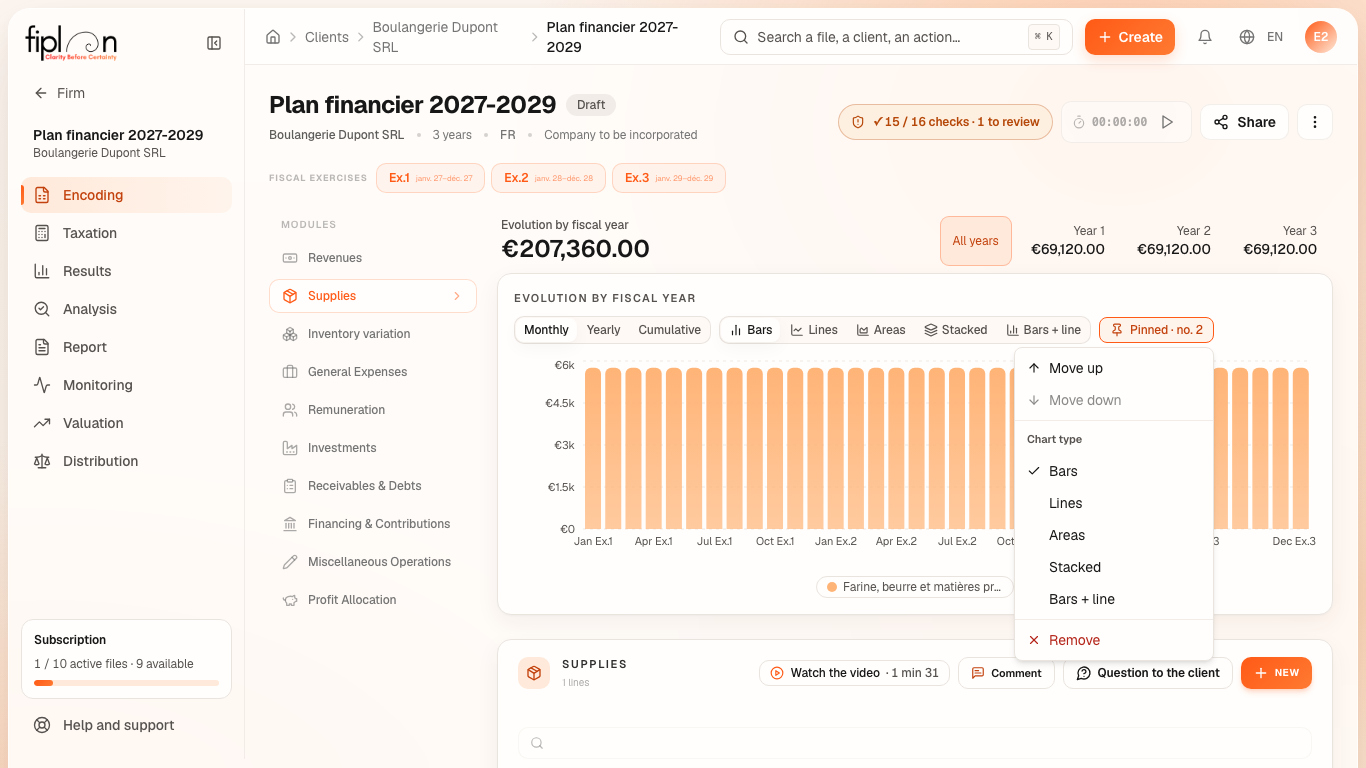
The charts of data entry and of the Results — income statement, cash flow, VAT, ratios — carry the Pin to report button. Once pinned, the button shows “Pinned” and its rank in the report, and opens a menu: Move up, Move down, Chart type — bars, lines, areas, stacked, bars + line, depending on the chart — and Remove. Everything is set on the chart; the Report module has no separate list.
In the PDF, the “Pinned charts” section presents them two per page, in the order of their ranks and in the chosen type; the Excel file draws them in its Charts tab. The Standard and Advisory templates have this section, the Bank template has it as an option, the Notary template does not have it.
Steps
- On a chart, choose its type, then click Pin to report.
- The button becomes “Pinned” followed by its rank; click it to open its menu.
- Order with Move up and Move down, change the display in Chart type, or unpin with Remove.
- Open the Report module: the preview shows the “Pinned charts” section.
Worked example · Boulangerie Dupont SRL
For its bank, the bakery first pins the “Multi-year evolution” of the income statement — revenue of €216,000.00 per year, a net result of €83,076.13 in 2027 —: its button shows “Pinned · no. 1”. Then the 2027 monthly cash flow, whose low point (€52,318.06) falls in March 2027: “no. 2”.
Move up on the cash flow takes it to no. 1; the income statement's evolution becomes no. 2. In the Bank template, tick “Pinned charts” in the Optional sections: the two charts fit on one page of the PDF.
Pitfalls
What it changes
Source
Fiplan convention (graphiques-epingles.ts, FpChart.tsx, modeles-rapport.ts, rendu-pdfmake.ts): the pin keeps the chart, its type and its rank, in the file; the pin's menu on the chart; the report section, two charts per page.