
Generating the plan's PDF
The report is the plan as it will be handed over: to the notary, the bank or the client. Fiplan produces it at each change; you choose the template, complete the plan information, and download the PDF or the Excel file.
What it is for
The PDF contains the figures shown on screen — income statement, balance sheet, cash flow, tax — read from the same journal. The template decides the order and the sections: an incorporation plan for the notary, a financing file for the bank, an analysis for an advisory engagement.
The Report module opens the Plan report page, in two columns:
- on the left, four numbered settings, which open and close: ① Template (with the Optional sections), ② Document theme, ③ Plan information — when closed, it says how many fields are filled in — and ④ Compose the report. ① and ④ are open when you arrive;
- on the right, the preview: the PDF produced, one page at a time, with “Page n / N” and its arrows. Enlarge (or a click on the page) opens it full size; Escape closes it. Below the preview, Updating… during the calculation, then Preview up to date.
The Download the Excel file and Download the PDF buttons are at the top right. In this module, the file's header fits on one line — the file name, the client, the checks badge — with Share, which shares a version of the plan with the client.
Every page of the PDF, except the cover, carries a header — the firm's logo and name on the left, the section title on the right — and a two-line footer: the client, the file and the date of preparation, with the page number on the right; then the firm and its contact details, with the mention of Fiplan on the right (absent when the firm uses white label).
Steps
- Open the Report module.
- In ① Template, choose Standard (the complete financial plan), Notary (the incorporation plan, in the order of the legal items), Bank (the request, then the repayment) or Advisory (the recommendations and the analyses). The Notary template is reserved for a company to be incorporated. Tick Optional sections if needed.
- In ② Document theme, choose the colours: the theme applies to the PDF and the Excel file, the figures do not change.
- In ③ Plan information, complete what the template asks for: the description of the planned activity, the guarantees provided, the description of the assumptions; depending on the template, the external expert, the financing request, the recommendations.
- Read the preview on the right: it is the PDF itself, reproduced at each change. In ④ Compose the report, a click on a section opens the preview at its page.
- Click Download the PDF or Download the Excel file.
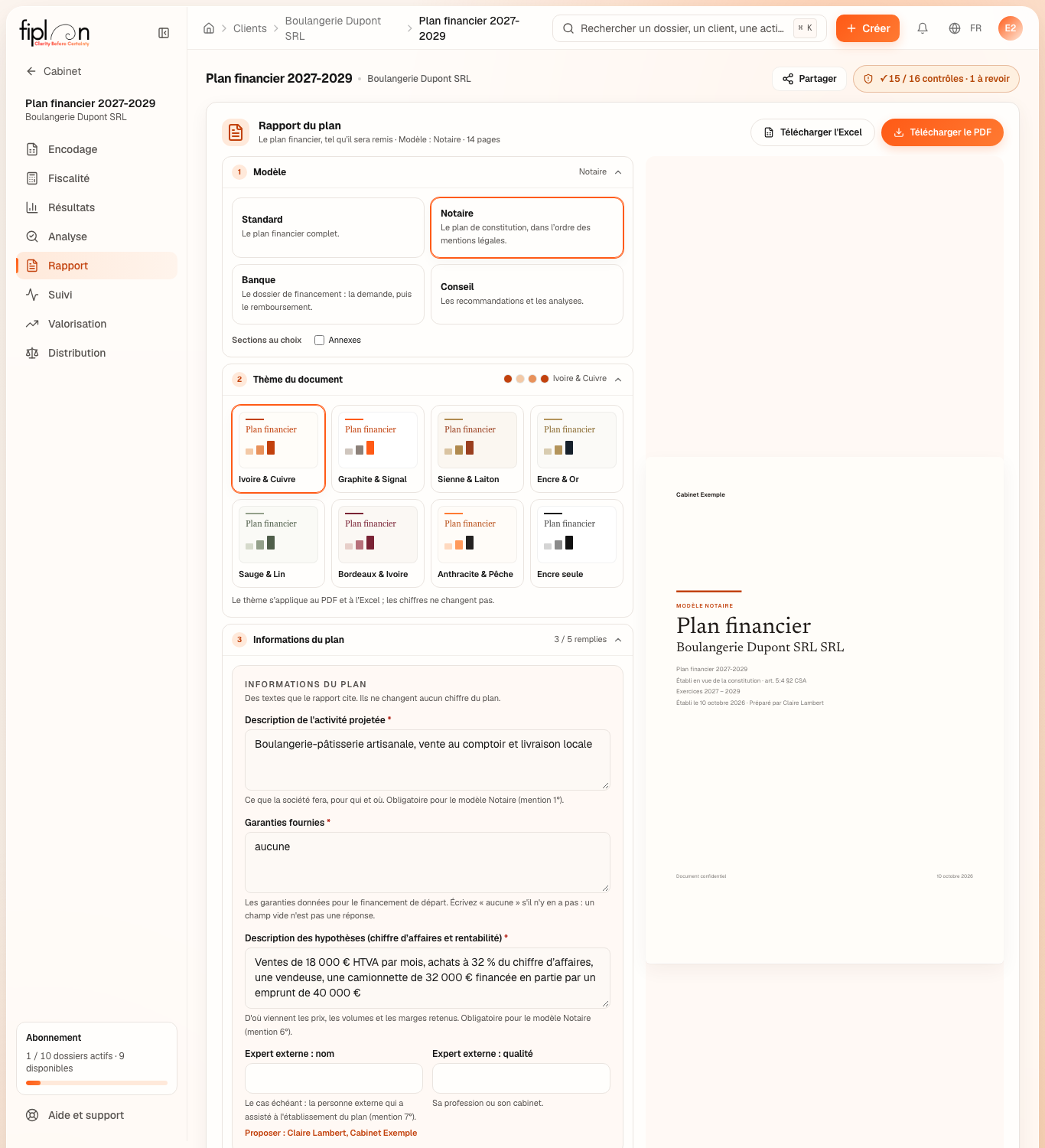
Worked example · Boulangerie Dupont SRL
A company to be incorporated: Fiplan proposes the Notary template. The plan information:
| Information | What to write for Boulangerie Dupont |
|---|---|
| Planned activity | Artisan bakery and pastry shop, counter sales and local delivery |
| Guarantees provided | none |
| Assumptions | sales of €18,000.00 excl. VAT per month, purchases at 32% of revenue, one sales assistant, a €32,000.00 van partly financed by a loan of €40,000.00 |
Without an external expert, setting ③ sums up: 3 / 5 filled in.
The PDF includes, among other things, the 2027 revenue (€216,000.00), the stock at the first year-end (€2,840.55) and the loan's outstanding principal at 31 December 2027 (€33,322.82): the same figures as on screen. Prepared on the day of the example, each page carries in its footer “Boulangerie Dupont SRL · Plan financier 2027-2029 · prepared on October 2, 2026”, and, on the second line, “Made with Fiplan”.
Pitfalls
What it changes
Source
Companies and Associations Code (Code des sociétés et des associations / Wetboek van vennootschappen en verenigingen): Articles 5:4 (private limited company, SRL / BV), 6:5 (cooperative company, SC / CV) and 7:3 (public limited company, SA / NV) — the financial plan handed to the notary at incorporation, and the items it contains.
Fiplan convention (RapportStandard.tsx, ApercuPdf.tsx, pied-de-page.ts): the two-column page, its four settings, the page-by-page preview, the header and footer shared by the PDFs.