
The plan's Excel file
The PDF is for reading; the Excel file is for checking. It contains the plan's entire journal, and each total of the financial statements is a formula on that journal: an accountant can recalculate everything, without Fiplan.
What it is for
Download the Excel file produces a workbook that follows the report's template and theme. Its tabs:
- the template's presentation tabs — Contents (or Concordance for the Notary template), Summary, Assumptions, Appendices, Charts;
- the statements, always present: opening balance sheet, balance sheet (assets, liabilities), appropriation of result (affectations et prélèvements / resultaatverwerking), income statement, annual and monthly cash flow, debt service capacity, taxation, VAT, ratios, checks;
- the prior-year (N-1) actuals, if they were entered; the Journal; the Monthly inputs.
Each tab reads like a page, without gridlines:
- at the top, the tab's title (and a subtitle in grey); on the next line, the client, the file, the firm, the date and the mention of the amounts; then the “← Contents” link (in green). The Journal, a data table, starts directly with its columns;
- subtotals on a light peach background; the last line of a statement — the net result, the balance sheet total, the closing cash — framed, with a double rule below;
- inputs in dark blue, formulas in black, links to another tab in green; the legend “Colours: blue = data · black = formula · green = link to another sheet” below the tab's content, outside the print area (except in the Journal, the Contents and the Charts);
- printing on A4 landscape, one page wide; the printed header carries the firm and the client, the footer the page number and, except under white label, “Made with Fiplan”.
The Contents tab recalls the colour conventions in full: “Blue: input or data computed outside the journal (assumptions, journal)” · “Black: formula” · “Green: link to another sheet”. And: “Every figure of the statements is a formula summing the Journal sheet (SUMIFS).”
Steps
- In the Report module, choose the template and the theme.
- Click Download the Excel file, at the top right.
- Open the Journal tab: every entry of the plan, with its account, its financial year, its month.
- Click in a total of a statement: the formula shows what it sums.
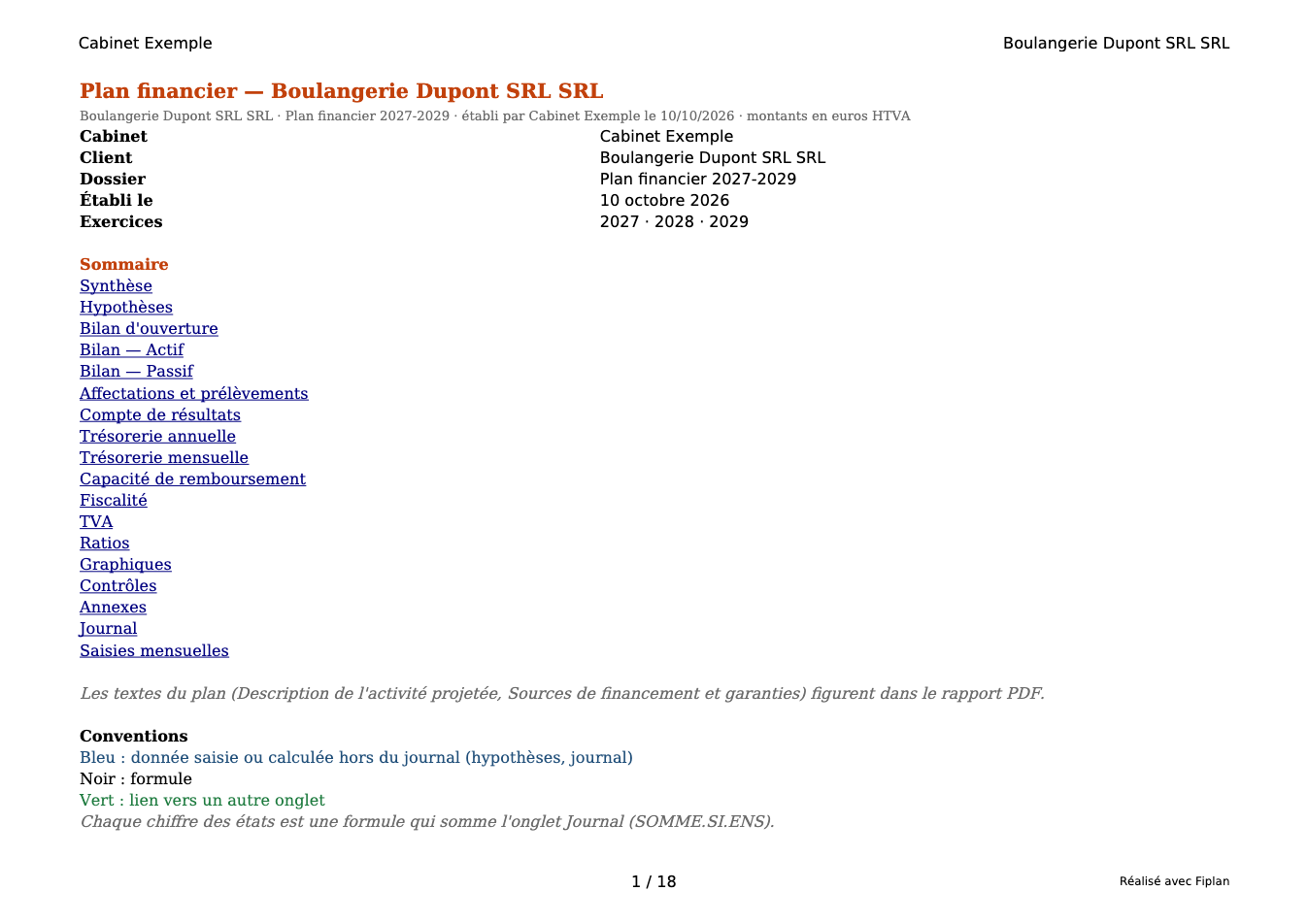
Worked example · Boulangerie Dupont SRL
The workbook is named Plan-financier_Boulangerie-Dupont-SRL_2026-10-02.xlsx. Below its title, each tab carries: “Boulangerie Dupont SRL · Plan financier 2027-2029 · prepared by Cabinet Exemple on 02/10/2026 · amounts in euros excl. VAT”.
In the income statement tab, the 2027 revenue, €216,000.00, is a SUMIFS formula that sums, in the Journal tab, the entries of its line item for the 2027 financial year. The same figure as on screen and in the PDF, recalculated by Excel.
Pitfalls
What it changes
Source
Fiplan convention (excel/classeur.ts, excel/libelles-excel.ts, excel/style-classeur.ts): the tabs, their order, the SUMIFS formulas on the Journal table, the title block, the subtotals, the colour conventions and their legend, the page layout.