
The firm dashboard
The dashboard does not summarise the firm: it tells you what to do now. A blocking check, an approaching deadline, missing data, a forgotten draft — each item points to the place where you deal with it.
What it is for
The dashboard brings together:
- the indicators: Active files, files under review, files delivered this month, Time this month;
- To do, sorted by urgency: in red, a blocking check; in orange, a deadline within 7 days at most (or overdue), a missing incorporation date, Notary statements to complete, then what the modules ask for — a Distribution report to draw up (the company and the payment date, the nearest payment first) and a step to review in Monitoring, Valuation or Distribution (“file — module: step to review”, with its reason); in grey, a draft not changed for 14 days;
- Pick up where you left off: the last 3 files opened, with their progress;
- the Dossier pipeline, the next 5 Deadlines and Team activity: among other things, creations, reports generated, moves to the bin and restorations (of a file or an exchange), a withdrawn message, a shared version, a monitoring report published to the client — “without e-mail” when nobody was notified —, a published valuation, an export of the firm.
A file's progress follows four steps, passed in order: Data entry (at least one line), Checks (green or orange checks badge), Report (a report generated), Delivered (status Completed).
A new account first sees Your work thread: ① the client, ② their file, ③ the entry, ④ the report — one action at a time, the current step's; the next ones say where they happen. It disappears once the first client and their first file exist.
Steps
- Open the Dashboard.
- Work through To do from top to bottom: each line has its button — Open, Generate, Complete or View. For a module's line, Open leads to the step to review; for a distribution report, to step ⑤ of the test.
- Set a deadline in the file settings so that it appears here.
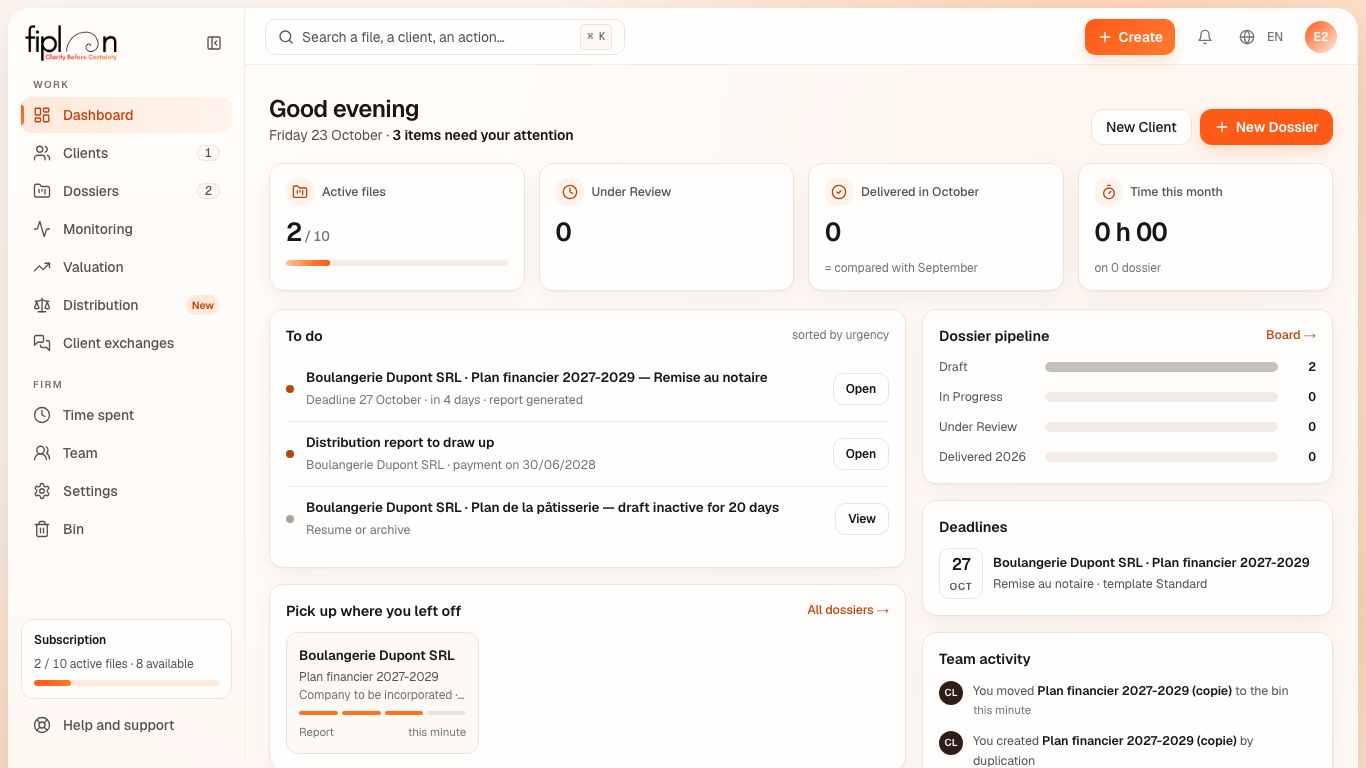
Worked example · Boulangerie Dupont SRL
On 25 January 2027, the bakery's file has 10 lines and an orange checks badge: it is at step 2 of 4. Its deadline — submission to the notary, on 29 January 2027 — falls in 4 days, with no report generated.
To do counts 2 items:
| Order | Item | Colour | Action |
|---|---|---|---|
| 1 | Plan financier 2027-2029 — submission to the notary, in 4 days | orange | Generate |
| 2 | Plan de la pâtisserie — draft inactive for 20 days | grey | View |
Once the report is generated, the bakery moves to step 3; once delivered, to step 4.
Pitfalls
What it changes
Source
Fiplan convention (tableau-de-bord/index.ts, regles.ts, useAFaireModules.ts, BlocActivite.tsx): the four progress steps, the order of “To do” and what the modules add to it, the thresholds of the approaching deadline and of the inactive draft, the activity events.