
Your profile
Your profile holds what belongs to you. What belongs to the firm — its identity, its documents, its members, the whole team's time — is set in the firm settings.
What it is for
Open your profile menu (top right), then Profile. The My profile page has six blocks:
- My details: the Full name, the Phone, the Sign-in e-mail (it cannot be changed here: contact support), the Interface language and My report signature. The language chosen applies at once, and Fiplan's e-mails follow it;
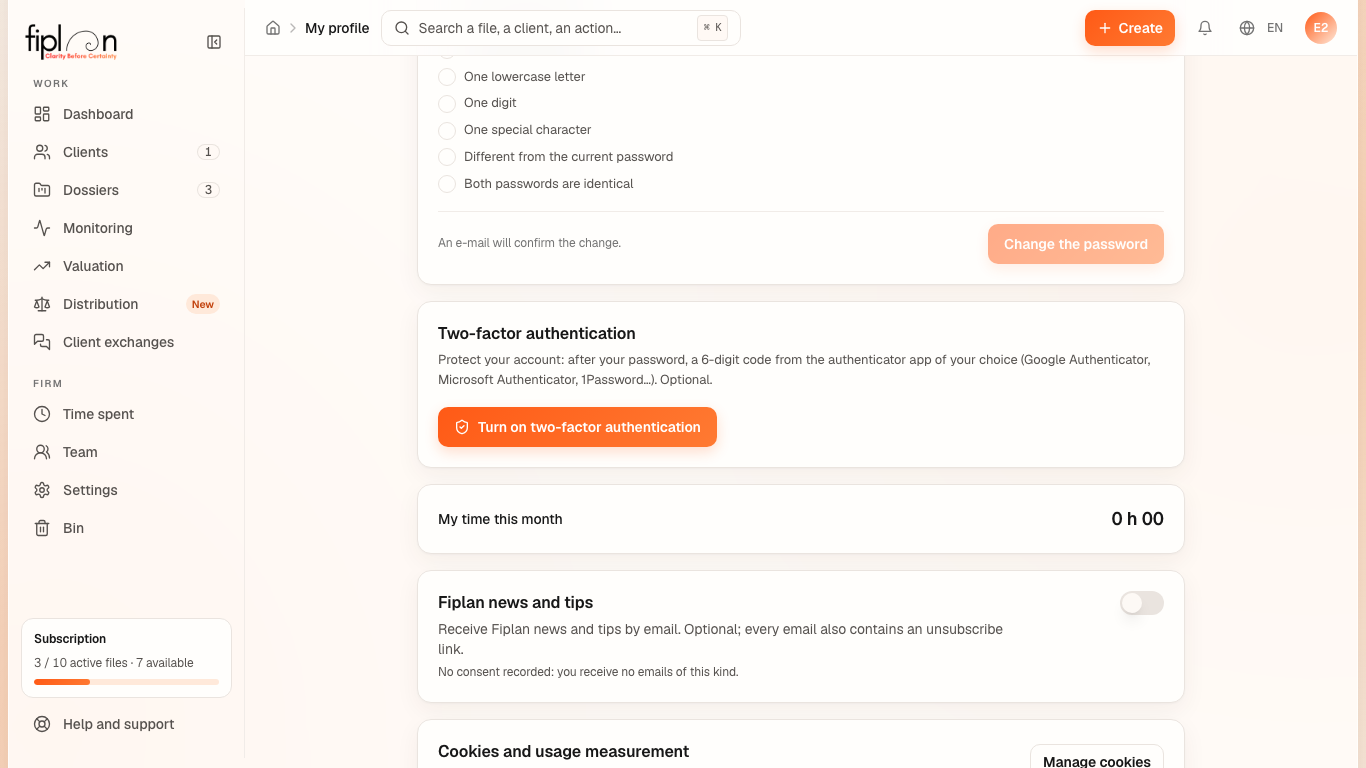
- Password: “To change it, first enter your current password.” Three fields — Current password, New password, Confirm the new one — and seven rules ticked as you type: At least 8 characters, One uppercase letter, One lowercase letter, One digit, One special character, Different from the current password, Both passwords are identical. The first five are those of sign-up and of the reset: the same rules in the three places;
- Two-factor authentication, optional: after your password, a 6-digit code from the authenticator app of your choice. Turn on two-factor authentication shows a QR code and a key to copy; a code from the app confirms it, then “Turned on …”. Turn off asks for a valid code. A security e-mail confirms each change. Once it is on, your data only opens after the code — on screen and on the server, which refuses any read from a session that has not entered it;
- My time this month;
- Fiplan news and tips: a switch, optional, to receive the news by e-mail; the date of your consent (or of your unsubscription) is shown below it;
- Cookies and usage measurement, with Manage cookies.
Steps
- Open your profile menu, then Profile.
- Fill in your details and your signature, then click Save.
- To change your password, first type the current one, then the new one twice; once the seven rules are ticked, click Change the password.
- Fiplan checks the current password before any change. Correct: “Password changed.”, then a confirmation e-mail goes to your address, and the screen says so. Wrong: “This password does not match your account. Nothing was changed.”, with the Forgot your password? link, which sends a reset link to the account's address.
- For two-factor authentication, click Turn on two-factor authentication, scan the QR code with your app and enter the code it shows. At the next sign-ins, the code is asked for after the password.
Worked example · Boulangerie Dupont SRL
The cover of the bakery's PDF carries “Prepared by” followed by your full name. If you write “Example Firm — financial plans department” in My report signature, that text replaces your name on the documents you generate; a colleague keeps their own.
Pitfalls
What it changes
Source
Fiplan convention (Profile.tsx, mot-de-passe.ts): the blocks of the profile, the signature that replaces “Prepared by”, the current password checked before any change, the password rules (the same as at sign-up and at the reset), the confirmation e-mail; Supabase Auth's two-factor authentication (authenticator app, 6-digit code), optional (DoubleAuthentification.tsx).