
The monthly detail and growth
A line is described by a formula — a monthly amount, a quantity, a percentage — that Fiplan rolls out over the whole plan. The monthly detail shows it month by month, and lets you adjust it: a particular month, or growth from one financial year to the next.
What it is for
The Monthly detail is a tab of the line window for Revenues, Supplies or General Expenses, next to the Entry tab. It shows the amounts that the line's formula has rolled out, in a table with one row per calendar year: the Amounts excl. VAT header, the twelve months, then the year's total. The first column gives the year and the financial year or years it touches (“Yr 1”, or “Yr 1 · Yr 2” when the calendar year straddles two financial years); a month outside the line's periods shows “—”.
Above the table, the Growth per year card makes the entered value grow from one financial year to the next: each year starts from the monthly amount of the previous one, and the first starts from the entry. It only appears if the line covers more than one financial year. Each financial year's total can be read on its cards and in the bar at the bottom, which also gives the line's total.
Steps
- Open the Monthly detail tab at the top of the line window, or press D when the cursor is not in a field. From the list, the eye-shaped icon opens the line straight on its detail. The Entry tab takes you back.
- Correct a month by hand if needed: Enter, → or ↓ move to the next month; Shift + Enter, ← or ↑ to the previous one. The corrected month carries an orange dot on a peach background, and a sentence under the table reminds you that it remains an exception. With Quantity × Unit price, the Input mode chooses what you type: the quantity or the amount excl. VAT.
- For growth: in the Growth per year card, type each financial year's percentage in the Growth box. The Yr 1 box is greyed out — it starts from the entry; an empty box keeps the previous year's amount. Click Apply growth: each card shows the amount Per month (or Per quarter, Per year, Once, depending on the frequency) and the financial year's Total; between two cards, the factor applied.
- If the growth changes the calculation of a month typed by hand, a window names it, with its financial year, your entry and the calculation. Choose Keep (the proposed choice) or Overwrite month by month, or Keep all / Overwrite all, then Apply growth. Cancel (or Esc) changes nothing.
- Go back to Entry: a box there sums up each financial year's growth and the amounts it gives, with the Edit link that reopens the detail; the preview adds the percentage to each financial year. Click Save.
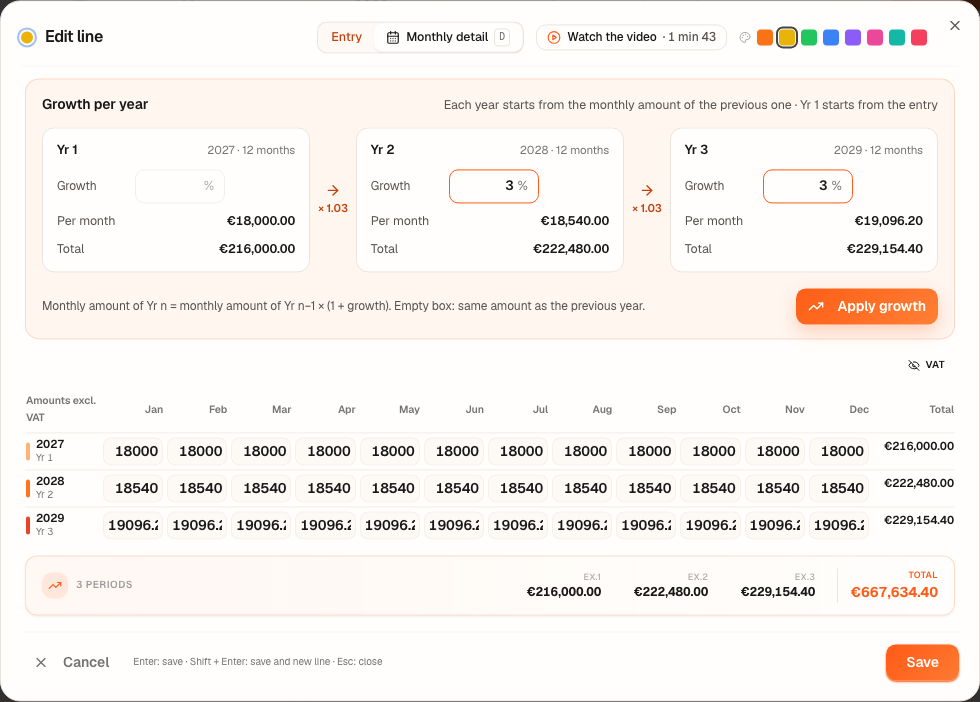
Worked example · Boulangerie Dupont SRL
Sales are €18,000.00 per month in 2027 (Yr 1). Growth of 3% entered for Yr 2 (2028), then for Yr 3 (2029):
| Financial year | Each month | Over the year |
|---|---|---|
| 2027 | 18,000.00 | 216,000.00 |
| 2028 | 18,540.00 | 222,480.00 |
| 2029 | 19,096.20 | 229,154.40 |
If the Yr 3 box stays empty, the 2029 month is €18,540.00: the monthly amount of 2028.
Growth always applies to the entered value: an amount, as here; a quantity with Quantity × Unit price (the unit price does not change); the percentage itself for a line expressed as a percentage (see the pitfalls).
The running example of this guide, for its part, keeps its sales constant: €18,000.00 per month over the three financial years.
Pitfalls
What it changes · 2028
Source
Fiplan convention (croissance-ligne.ts, validated on 08/10/2026): the entered value of financial year n — amount, quantity or percentage — equals that of year n − 1 multiplied by (1 + % of year n), rounded (to the cent for an amount); the line's first financial year starts from the entry; an empty box counts as 0%. Months typed by hand never serve as a base; each month's VAT follows its amount excl. VAT (deroulement-ligne.ts).